

Before you start
Create an Agent and open its chat.Steps
- Open Projects in the left rail. With none yet you see “No projects yet”.
- Select New project.
- Enter a Project name, for example
launch-notes. Use letters, digits,.,_or-, no spaces, starting with a letter or digit, up to 120 characters. - Optionally describe What is it for?, for example
Release notes and launch copy for the next release. - Select Create project. The project page opens. Your description is saved as the project’s first memory (“1 memory”).
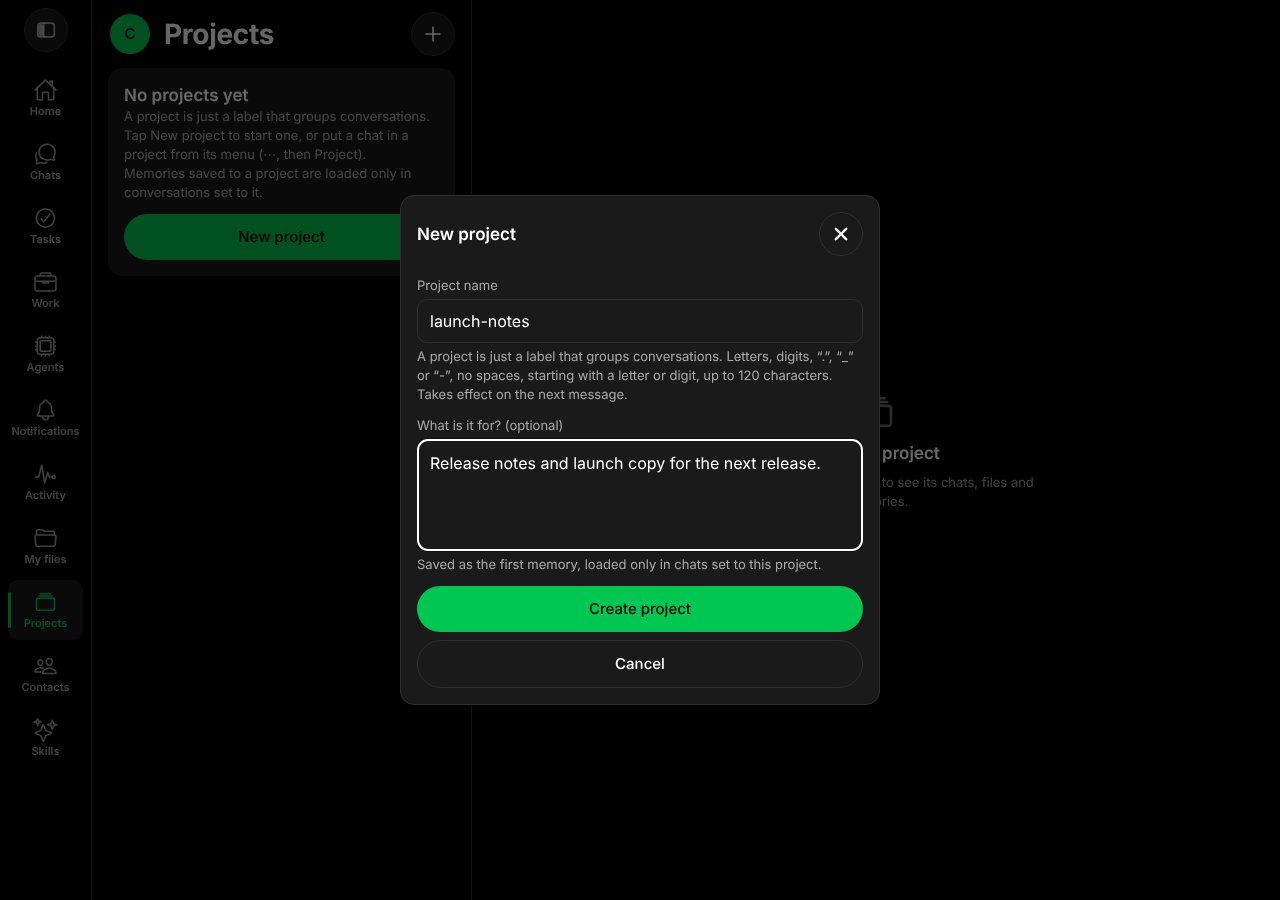
The New project form.
- Open the Agent’s chat, then ⋯ and select Project (it says “None — put this chat in a project to load its memories”).
- Under Your projects, select your project (the Project ID box fills in) and select Save. It takes effect on the next message.
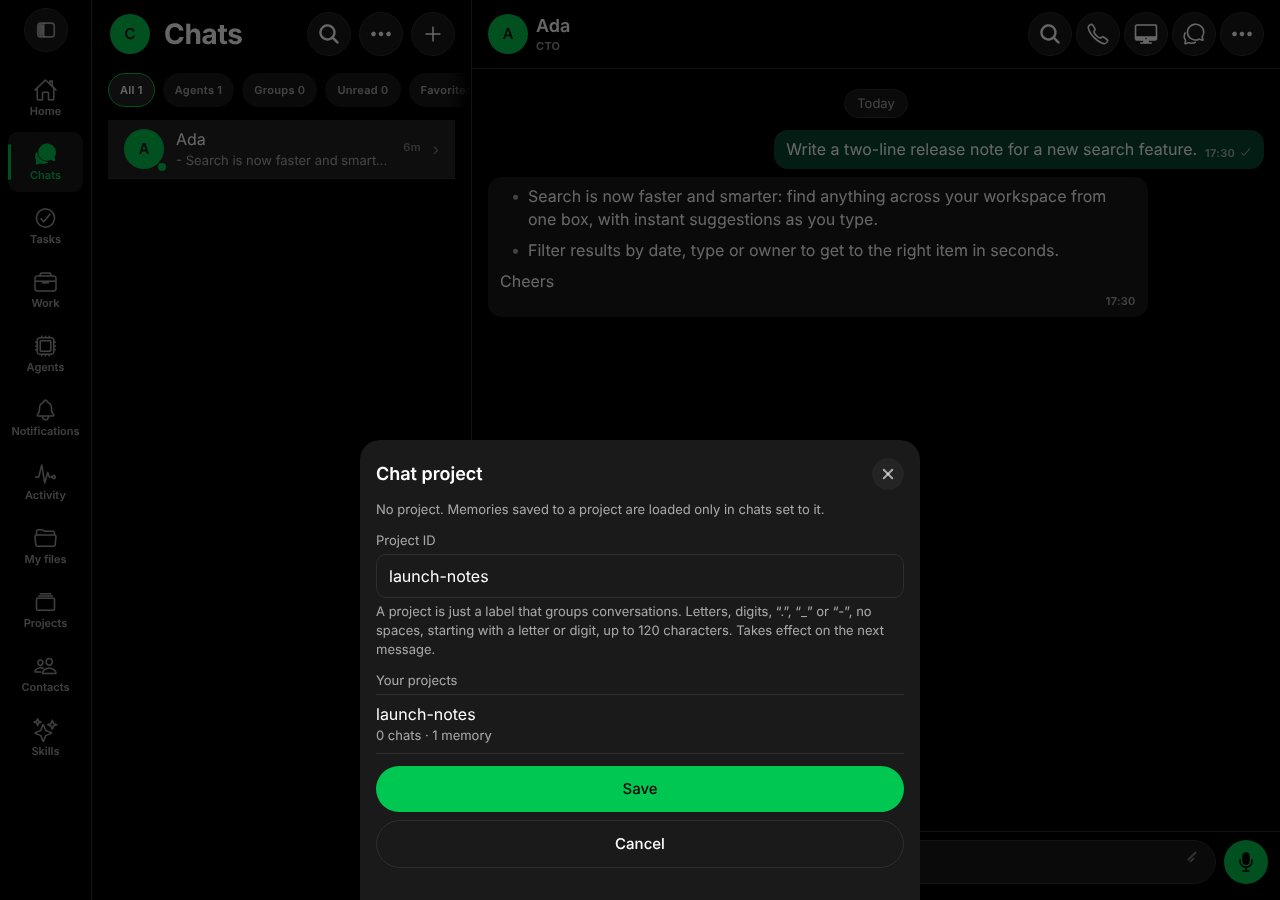
Choosing the project for a chat.
- Open Projects and select the project. It now lists the chat under Chats, any saved Files, and its Memories.
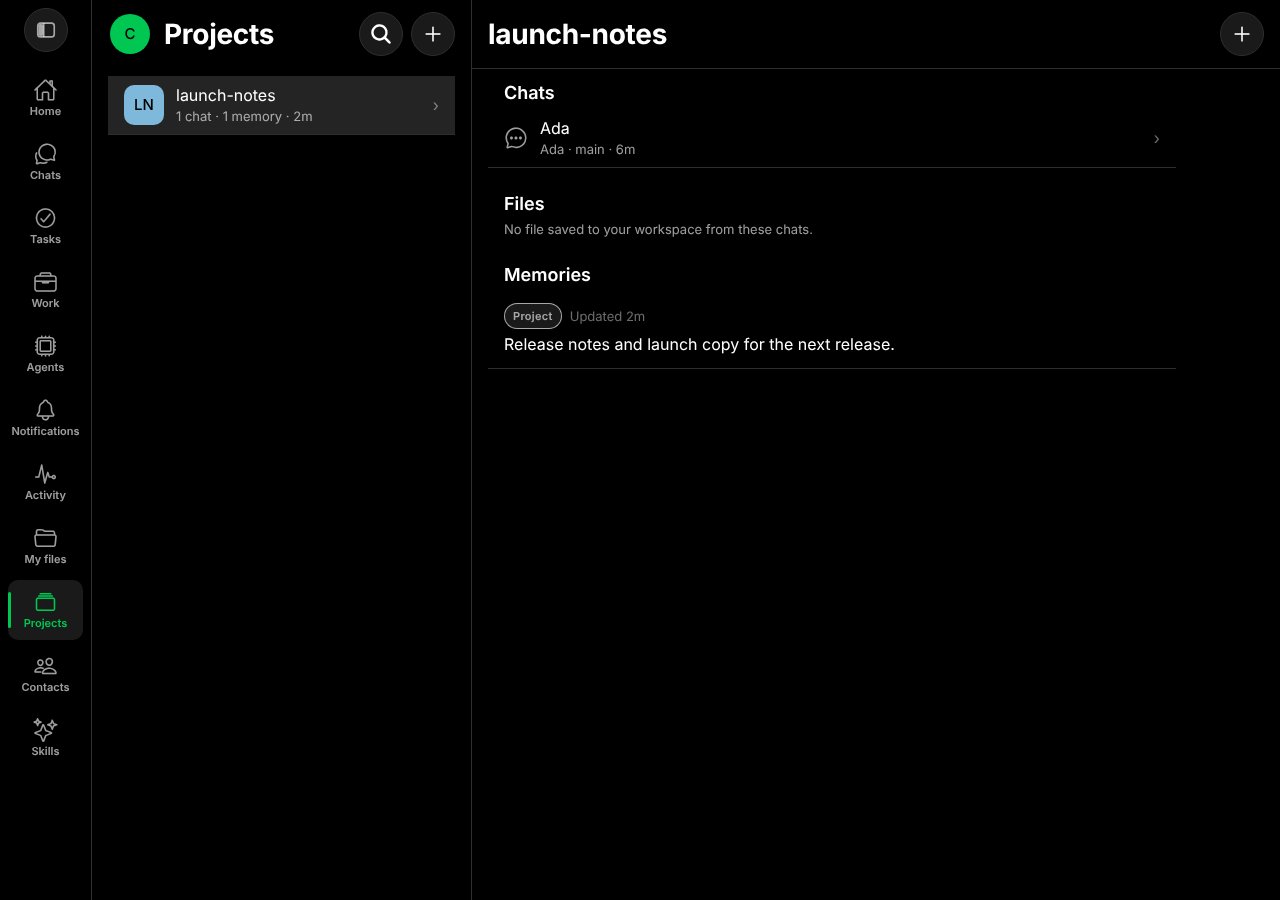
The project page.
Add a memory to a project
Open the Agent’s Memory, select +, choose Projects, enter the Project ID and write the memory. Only chats set to that project load it.Good to know
- A chat is in one project at a time.
- The project name is the Project ID you type in a chat’s Project sheet.
- The project page shows only files saved to your workspace from its chats.
worksong-ai/worksong:apps/mobile/src/features/projects/ProjectsScreen.tsx@e5e65e9, worksong-ai/worksong:apps/mobile/src/features/projects/NewProjectSheet.tsx@e5e65e9, worksong-ai/worksong:apps/mobile/src/features/projects/ProjectSheet.tsx@e5e65e9. Docs version: Worksong 2.0 with Work 1.2.