

Before you start
Create an Agent and open its chat.Steps
- In the chat header, select the monitor icon (Open Computer). You can also open ⋯ and select Open Computer (“Open its cloud desktop and use it yourself”).
- A Computer panel opens beside the chat. The screen shows after a few seconds, with a browser open and a Keyboard, Clipboard and Zoom button under it.
- Select Zoom to step the screen to 2×, then 3×, then back to the whole screen. Use it when the text is too small to read.
- Select Keyboard to show keys the screen cannot type for you: Esc, Tab, Ctrl and the arrows. Select Hide keyboard to close it.
- Select the × at the top of the panel (Close Computer panel) when you are done.
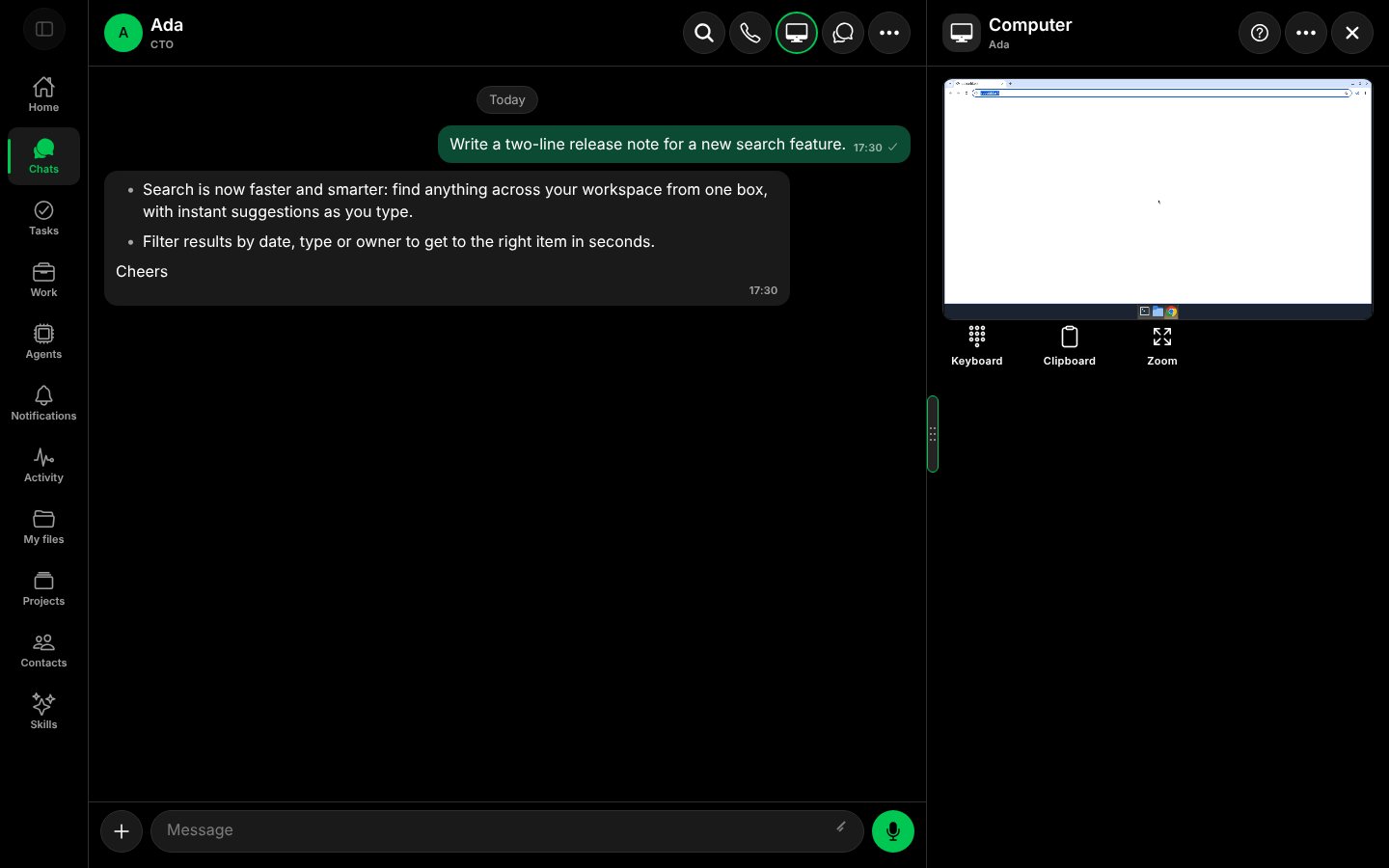
The Computer panel beside the chat.
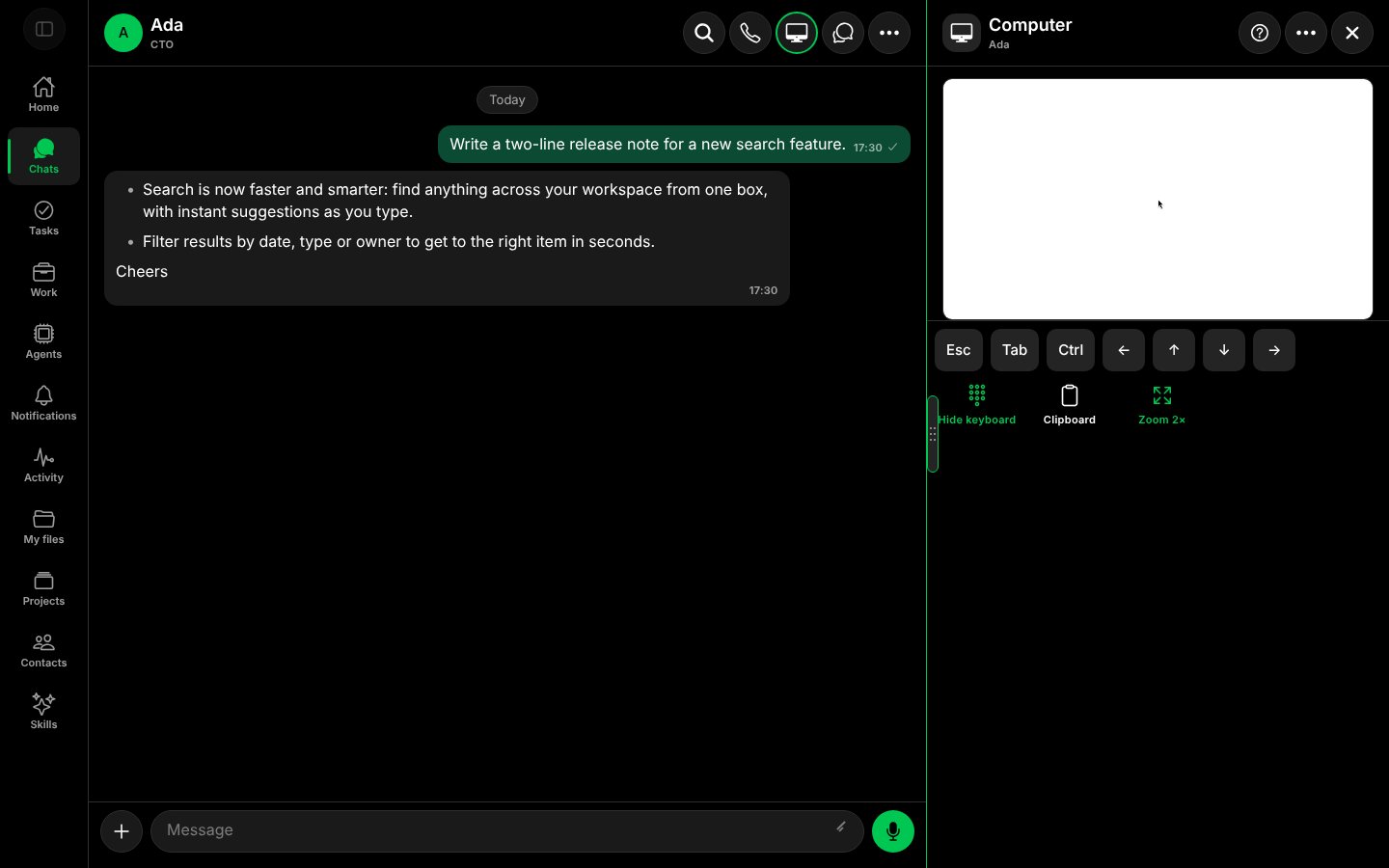
The keyboard open, with the screen zoomed to 2×.
The ⋯ menu
Select the ⋯ button in the panel header.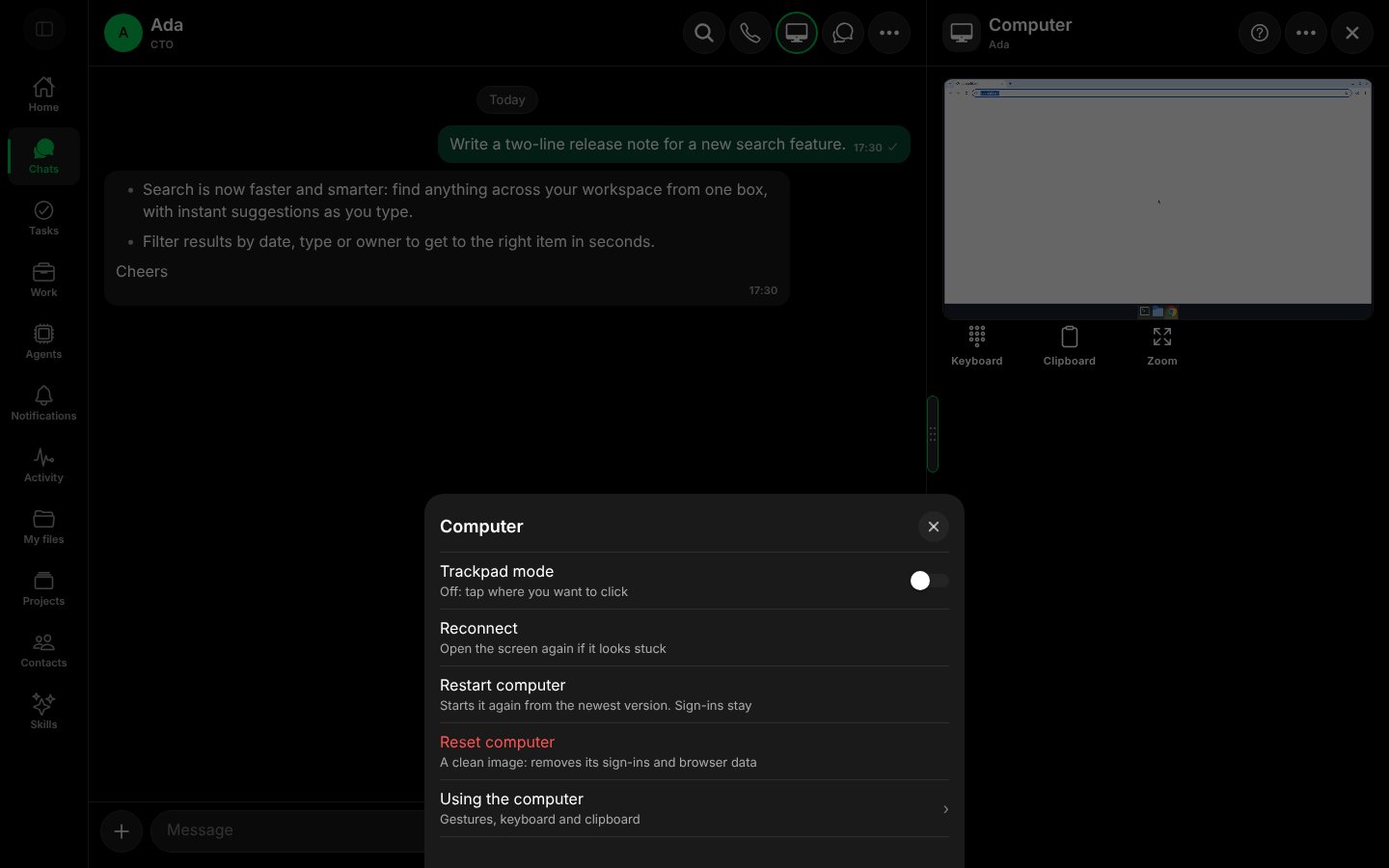
The Computer menu.
Good to know
- Reset computer is the only option that deletes anything: it signs the Computer out of every site. Use Restart computer first.
- The Computer is one shared screen: the Agent and you see the same desktop.
- Touch gestures: drag with one finger to select or move a window, drag with two fingers to scroll, press and hold (or tap with two fingers) to right-click, pinch to zoom.
worksong-ai/worksong:apps/mobile/src/features/computer/ComputerScreen.tsx@e5e65e9, worksong-ai/worksong:apps/mobile/src/features/computer/computerHelp.ts@e5e65e9. Docs version: Worksong 2.0 with Work 1.2.